
MenuDart
A small utility for a crowded Mac menu bar
Your menus.Within reach.
App menus and menu bar icons, in popups next to your pointer. Even the ones hidden by a crowded menu bar or the notch.
14-day free trial · One-time purchase for version 1.x
macOS 14+ · Apple silicon & Intel
Why MenuDart, in 50 seconds.
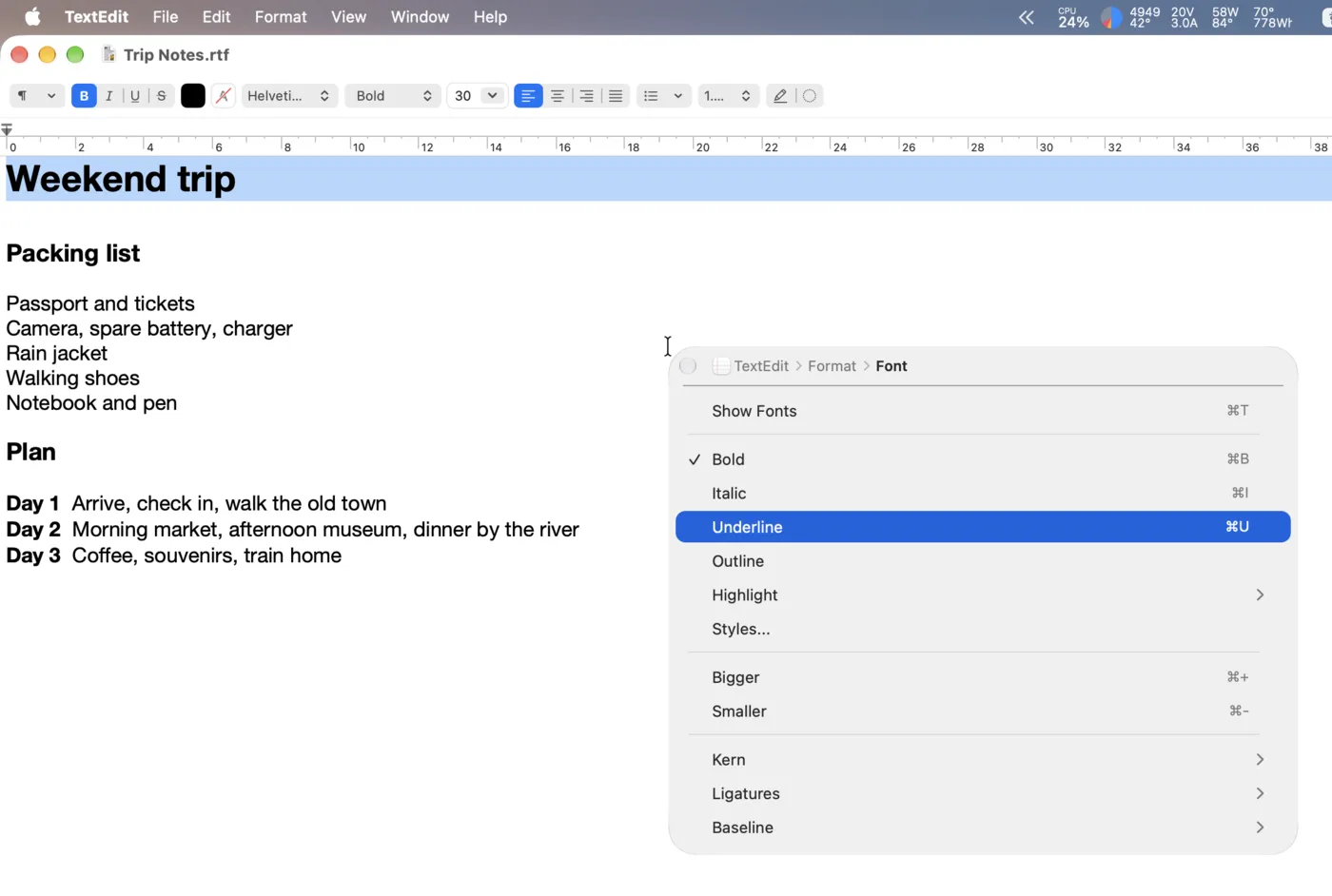
The app menu comes to you.
Open the frontmost app’s menus with a shortcut. File, Edit and the rest are available in one popup, even when their titles don’t fit in the menu bar.
- Move through submenus in place, and use the breadcrumb to jump back.
- Use arrow keys to navigate, Return or Space to run, and Esc to close.
- Keep focus in the app you’re working in.
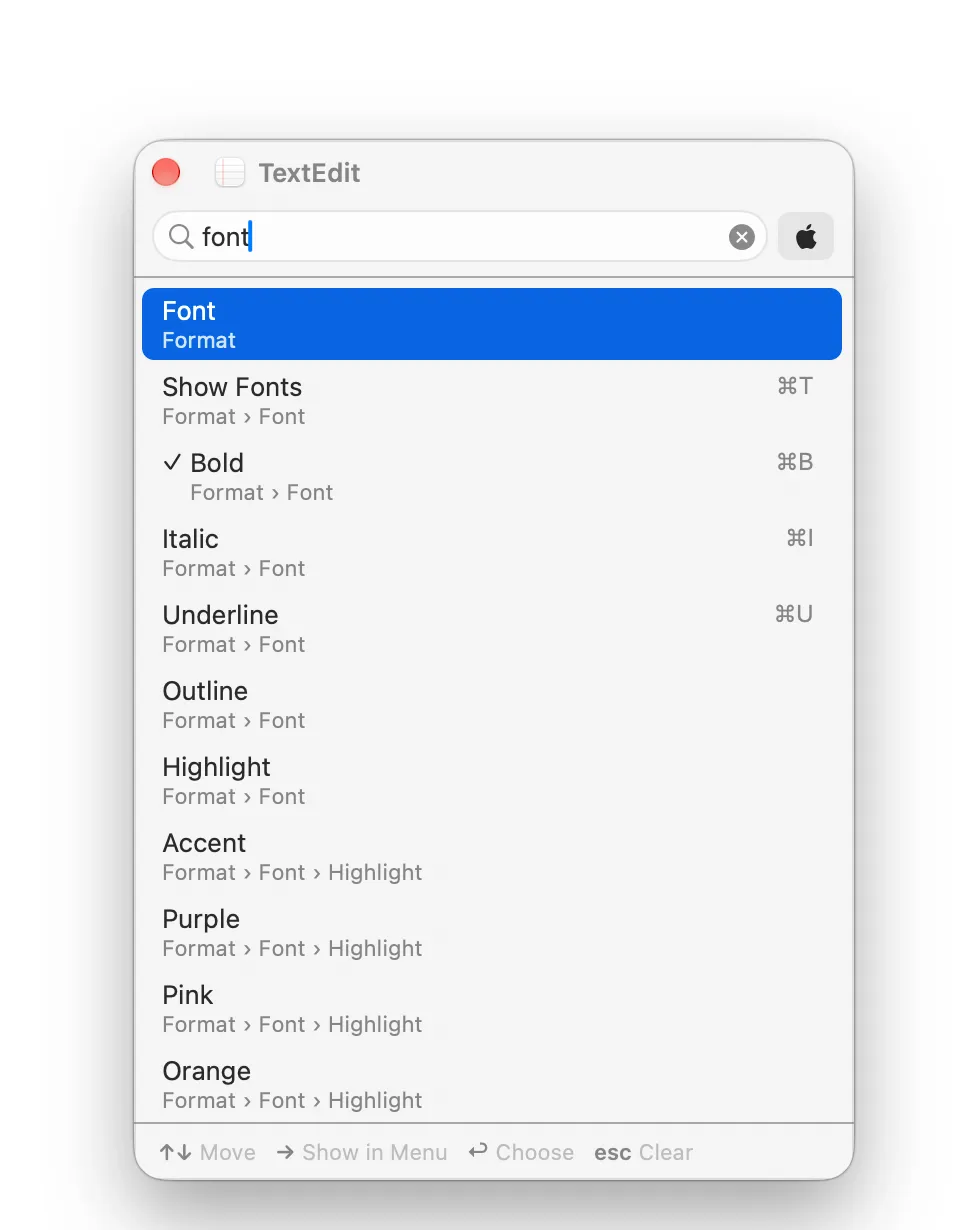
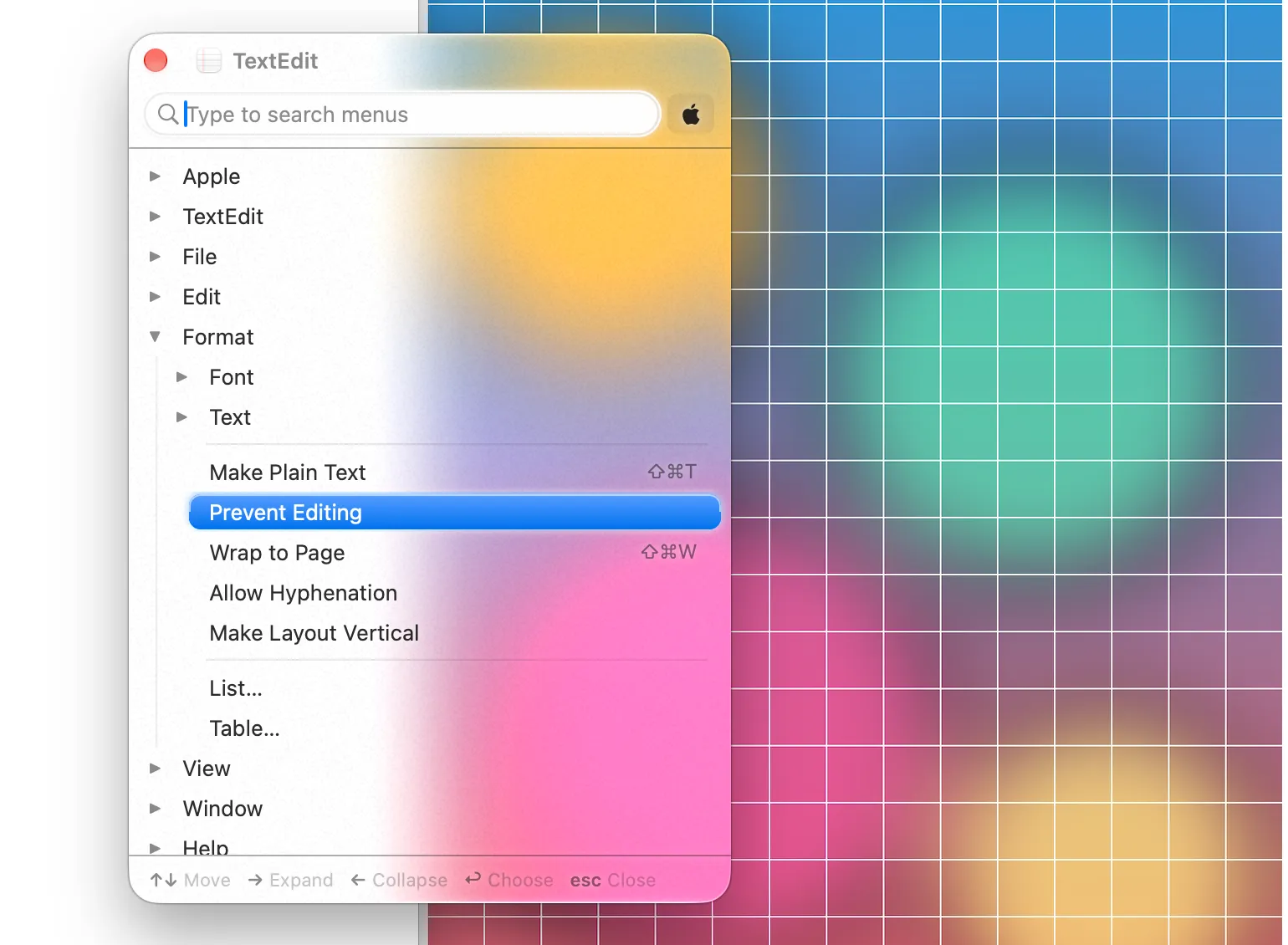
Find any menu item by typing.
Switch App Menus to the Outline layout to see every menu in one tree you can expand and collapse. Start typing, and MenuDart searches every menu item, submenus included, and shows where each one lives.
- Matches ignore case and accents, and Korean initial consonants work too.
- Press → to show a result in the tree, or Return to run it.
- Keep the Apple menu out of search with one switch.
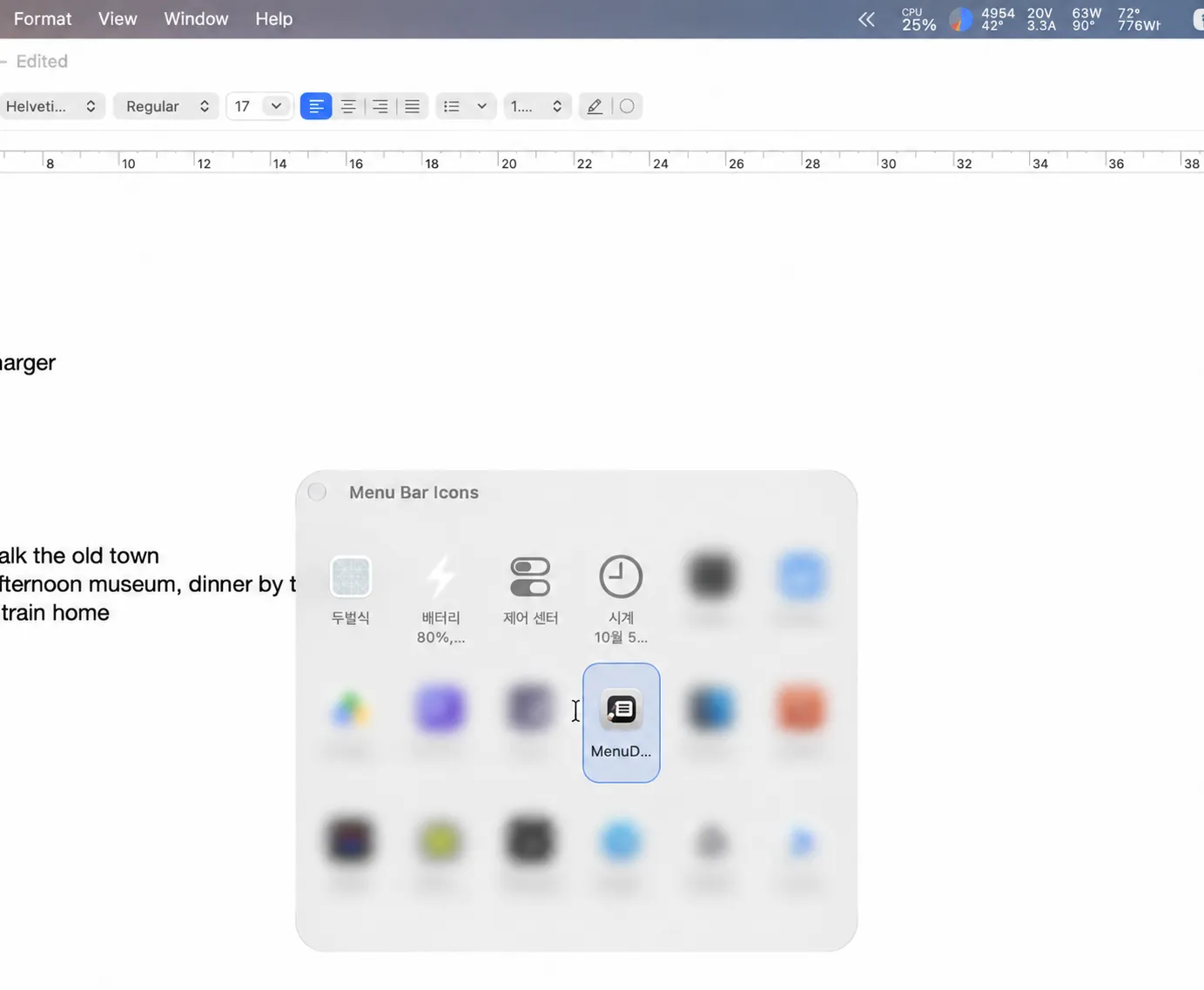
Find the icons you can’t see.
Gather your menu bar icons in one grid, including Control Center items, icons hidden behind the notch, and icons you tucked behind « on macOS 27 Golden Gate. Pick one, and MenuDart clicks the real icon for you.
- Choose an icon with arrow keys or the pointer.
- Type a few letters to find an icon by name, including Korean initial consonants.
- Use Space for a left click and Return for a right click. Swap them in Settings.
- Adjust the grid from 3 to 15 icons per row.
- Hide icon names to show the icons alone, like the Dock.
- While the list refreshes, Coco, the developer’s cat, looks through menus in the title bar, then curls up asleep when it’s done.
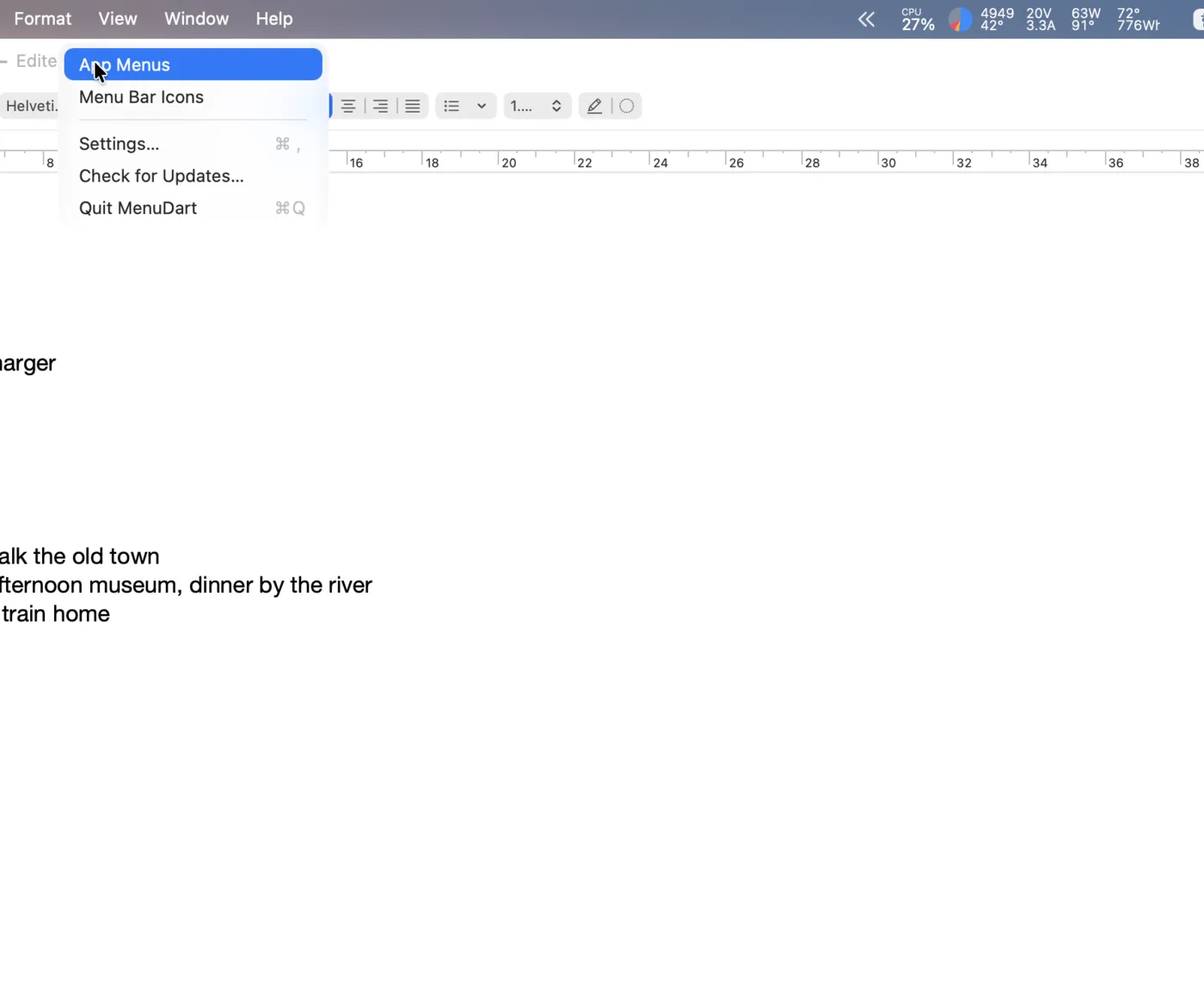
Pick an icon. The pointer takes it from there.
The icon’s menu opens in its usual place under the menu bar. MenuDart moves your pointer onto it, saving the trip to the top of the screen.
Choose Rocket, Trail, Dart, or No Effect for the pointer’s journey.
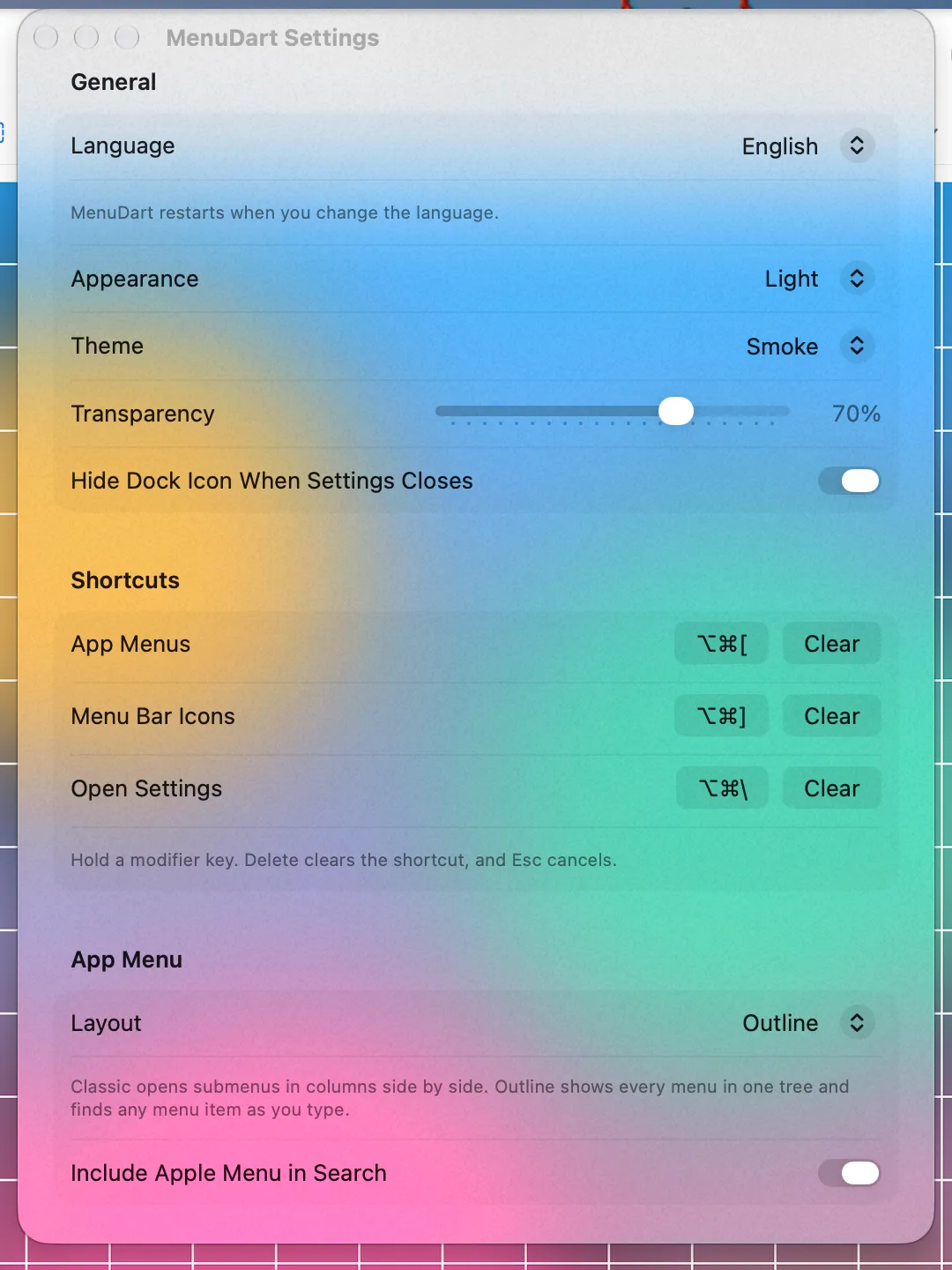
Classic or Smoke.
Classic draws the popups like macOS menus. Smoke turns them into smoked glass: what’s behind shows through, softly blurred, with a lit edge and a glossy selection.
- Set how much shows through with the Transparency slider.
- Smoke applies to the Settings window too.
- Text keeps a soft halo, so it stays readable over busy windows.
- In Smoke, Menu Bar Icons shows the icons alone, like the Dock.
A ⌘Tab that fits your screen.
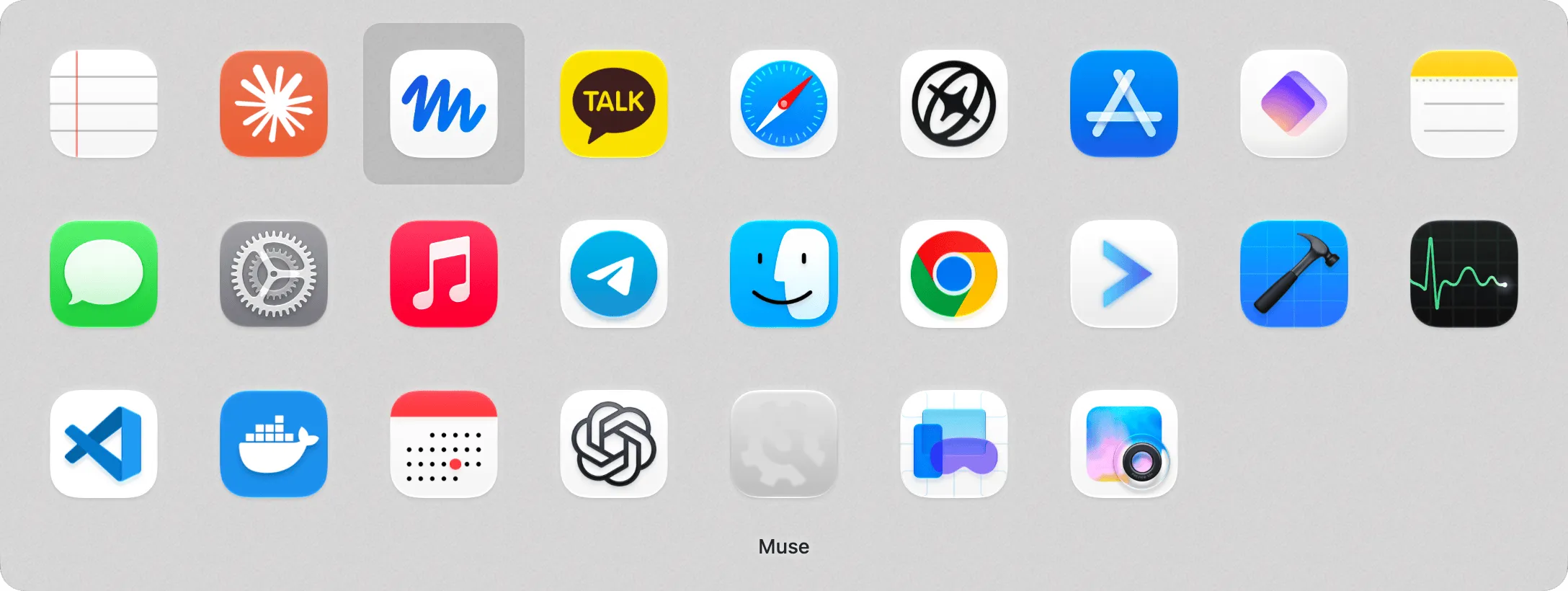
Turn on “Use MenuDart for ⌘Tab” in Settings → Shortcuts, and ⌘Tab shows your open apps in several rows on a glass panel, centered on the screen with the pointer. No more single long row running off a small screen when many apps are open. It’s off by default.
- Hold ⌘ and press Tab or Shift-Tab, or `, to move. Arrow keys move along and between rows. The selected app’s name appears under its icon.
- Choose an icon layout: fill the screen width, or match the screen’s shape so rows grow along its longer side and wrap before they get too long. On a 16:9 screen, 4 apps sit as 3 + 1 and 9 as 3 × 3.
- Switch three ways: let go of ⌘, press Return, or click an icon. Esc cancels.
- The chosen app comes to the front with its window, and an app with no window open gets a new one, like the Dock.
- Press Q to quit the selected app, or H to hide it.
- Uses the same Accessibility permission as the rest of MenuDart.
New in 1.3
Launchpad, back in your menu bar.
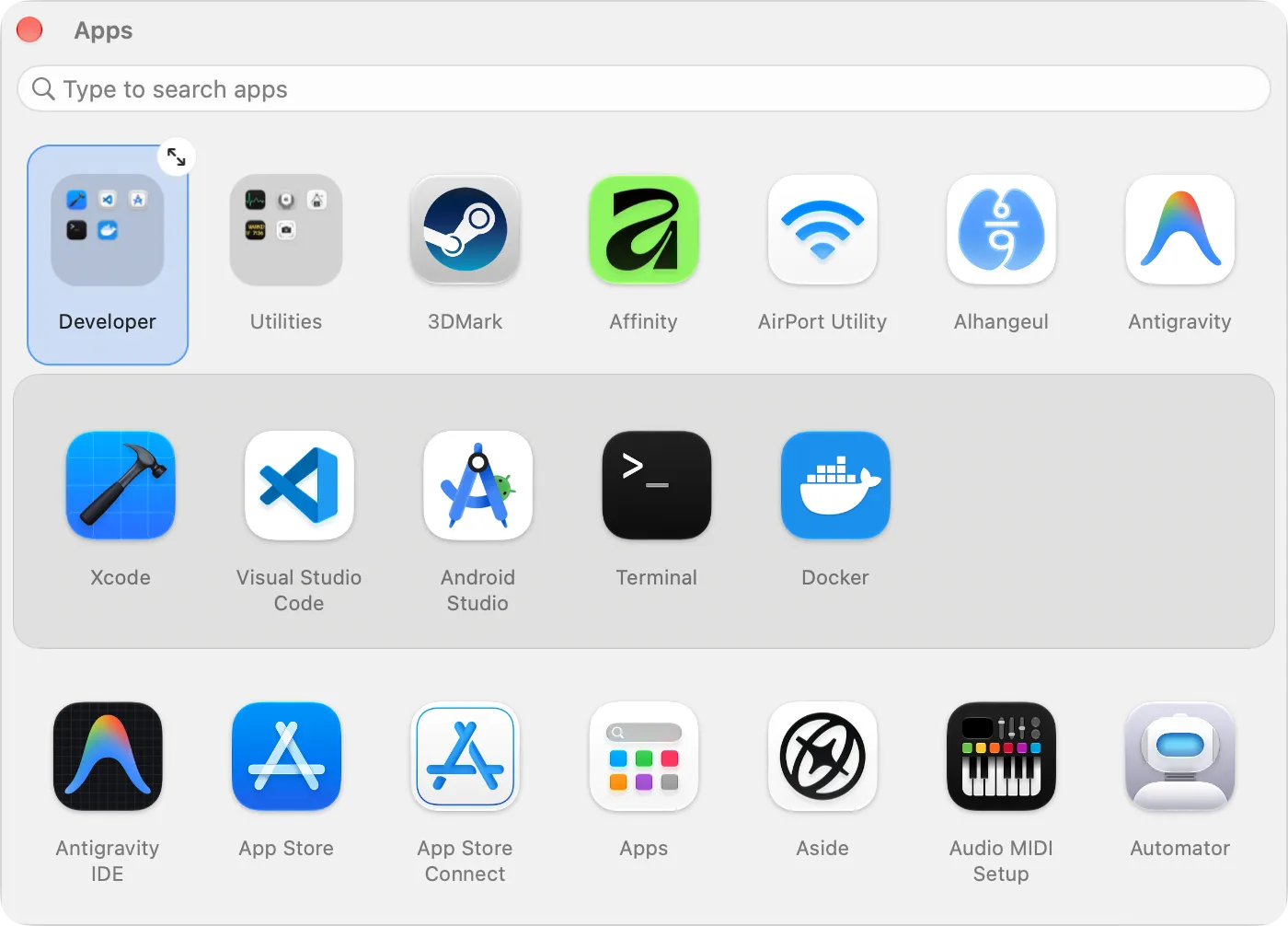
macOS replaced Launchpad with an Apps list you can’t arrange. MenuDart’s Apps popup brings your own layout back: all your installed apps in one grid next to the pointer, with its own shortcut.
- Drag icons into your own order. Drop an app onto another to make a folder.
- Click a folder to open a row of its apps right under it, and click it again to close it.
- Show a folder full size to rename it, take several apps out at once, or move apps in from anywhere.
- Type to find an app by name, Korean initial consonants included, and press Return to open it.
- Pin apps and folders to a Favorites row at the top, or switch to a category view grouped like macOS’s Apps screen.
- Prefer it big? Show it full screen with larger icons, like Launchpad, from Settings → Apps.
- No extra permission: the list of apps is read only on your Mac.
Included in MenuDart 1.3. MenuDart updates itself, or you can download it from GitHub. See releases on GitHub
Third-party app names and icons shown in screenshots belong to their respective owners and are shown only to illustrate MenuDart’s features. Unless otherwise stated, MenuDart is not affiliated with or endorsed by those companies.
Ready in a few minutes.
Install MenuDart
Download the DMG from GitHub Releases, open it, and drag MenuDart to Applications.
Allow the permissions
The first-launch guide covers Accessibility (required) and Screen Recording (optional). Restart MenuDart after allowing Screen Recording.
Set your shortcuts
No shortcuts are assigned at first. The guide offers ⌥⌘[ for App Menus, ⌥⌘] for Menu Bar Icons and ⌥⌘' for Apps, or you can record your own.
Take the tutorial
A built-in tutorial walks through every feature with its shortcuts, options and screenshots. It opens once after setup, and you can reopen it any time from Settings → General → Tutorial.
Made to fit your Mac.
- Two looks
- System, Light or Dark, with the Classic or Smoke theme for popups and Settings.
- 18 languages
- English, Korean, Japanese, Chinese (Simplified and Traditional), Portuguese (Brazil), Spanish, Hindi, Italian, German, French, Indonesian, Dutch, Polish, Russian, Thai, Turkish and Vietnamese.
- Updates from the app
- Check for updates from the MenuDart menu. Automatic checks run once a day and can be turned off in Settings.
Before you download
Which Macs does it support?
MenuDart requires macOS 14.0 or later and runs on both Apple silicon and Intel Macs. It is Developer ID signed and notarized by Apple, and distributed through GitHub Releases.
What do the permissions do?
Accessibility lets MenuDart read app menus, press menu bar icons and, if you turn it on, run the ⌘Tab switcher. Screen Recording is optional: it shows the real menu bar icon images instead of each app’s own icon. These images are not saved or uploaded.
Does it rearrange the menu bar?
Your menu bar stays as it is. MenuDart presents its menus and icons in separate popups. An icon’s own menu opens in its usual position, and the pointer moves to it. On macOS 27 Golden Gate, icons you tucked behind « are shown out only while the Menu Bar Icons popup needs them, then tucked away again.
What happens after the free trial?
You can try MenuDart for 14 days. After that, activate a purchased license key to keep opening the popups. One license is for one person: you can activate it on up to 5 Macs that you use yourself. It isn’t meant to be shared among 5 people. To move it to another Mac, deactivate it in Settings first. A one-time license covers version 1.x; a future major version may require a paid upgrade. See the license agreement for the full terms.
When does MenuDart connect to the internet?
MenuDart goes online only for updates, license activation and checks, and sale checks. Updates come from GitHub: checks send the app version, without a system profile, once a day if enabled in Settings → Updates or when you check manually. License activation and deactivation use Lemon Squeezy, with checks about once a day after activation. Activation sends your license key and Mac’s computer name; later checks send the key and activation ID. Before you activate a license, MenuDart checks studiojin.dev for a sale at most once every 36 hours, without sending an identifier or license information. MenuDart has no accounts, analytics, advertising, tracking or cookies. It does not send your menus, screen contents, files, keystrokes or usage. These services can see your IP address. See the privacy policy for details.
Keep your menus close.
Try MenuDart on your own Mac before buying a license.
macOS 14+ · Apple silicon & Intel
Questions or bug reports? Open a GitHub issue